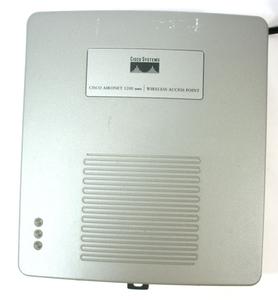
The Cisco Valet Plus M20 router has 300mbps WiFi, 4 Gigabit ETH-ports and 0 USB-ports. It also supports custom firmwares like: dd-wrt, OpenWrt
How to hard reset (factory reset) Valet Plus M20 :
You can hard reset your Valet Plus M20 with ways bellow
1. When the router is on, press the button reset and hold for 30 seconds.
2. While holding down the button reset, turn off the power of the router and hold down the button reset for 30 seconds
3. While holding down the button reset, turn on the power to the unit again and hold for another 30 seconds
Valet Plus M20 default Login & Password, factory settings :
Default Gateway IP: 192.168.1.1
Default username: admin
Default password: admin
Default subnet mask: 255.255.255.0
Default DNS server: 192.168.1.1
Valet Plus M20 router specifications :
System specs
CPU: n/a
RAM: 32 MiB
Flash: 4 MiB
Custom firmwares: dd-wrt, OpenWrt
Connectivity
WiFi: 300mbps (bgn)
WiFi bands
2.4GHz
WiFi throughput: n/a
WAN
1 x Gigabit port
ETH
4 x Gigabit ports
USB-ports: 0
Cisco M20 review (quick overview)
Here is the quick comparison of how the Cisco M20 compares to
other routers on our site
Average
26/100
Editor
72/100
WiFi
6/100
Hardware
2/100
Current price
$18.98
For a full list of routers and how they compare to the Valet Plus M20, check the
Router Buying Guide which will help you buy the most
price-competitive router.
How to login to the Valet Plus M20 :
Make sure you are connected to the router’s network, either by Wi-Fi or ethernet cable.
Open your browser and visit
http://192.168.1.1
You should be prompted with a login dialogue.
Enter the username: admin
and the password admin
You will now be logged in. If you haven’t yet changed the defaul password, we recommend that you change it first
thing you do after logging in.