The TP-LINK Archer C28HP router has Gigabit WiFi, 4 100mbps ETH-ports and 0 USB-ports.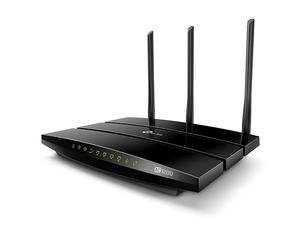
How to hard reset (factory reset) Archer C28HP :
You can hard reset your Archer C28HP with ways bellow
Use web interface :
Open a browser and navigate to the web interface of the router (see default settings below)
In the menu look for System tools and under there find the Factory defaults option
On the Factory defaults page click on the Restore button to perform the reset.
Use RESET/WPS button :
Have the unit powered on
Press and hold the reset (sometimes reset/WPS) button for 10 seconds with a paperclip or other sharp object.
When the SYS led start blinking quickly release the reset button and wait for router to boot back up.
Archer C28HP default Login & Password, factory settings :
If you have performed a reset of your Archer C28HP device or not changed the defaults, you
should
be able to access it with the following settings
Default Network name (SSID): TP-LINK_XXXX,TP-LINK_XXXX_5G
Default username: admin
Default password: admin
Default subnet mask: 255.255.255.0
Archer C28HP router specifications :
System specs
CPU: 750 MHz
RAM: 64 MiB
Flash: n/a
Custom firmwares: None
Connectivity
WiFi: Gigabit (abgn+ac)
WiFi bands
2.4GHz & 5GHz
WiFi throughput: n/a
WAN
1 x 100mbps port
ETH
4 x 100mbps ports
USB-ports: 0