The Steam Deck boasts incredible versatility, and with a little know-how, you can unlock even more potential. This guide will show you how to utilize Decky Loader and NonSteamLaunchers to seamlessly play Ubisoft Plus games on your Steam Deck.
How To Play Ubisoft Games with Decky Loader and NonSteamLaunchers
Why Decky Loader?
While there are other methods to run launchers like Ubisoft Connect on the Steam Deck, Decky Loader offers the simplest approach. It eliminates the need for complex coding or manual integration of launchers and games into the Steam Library.
Getting Started: Decky Loader Installation
- Power on your Steam Deck and press the Steam button. Select “Switch to Desktop Mode” from the Power menu.
- If you have one, connect a keyboard and mouse to navigate the Desktop Mode like a regular PC.
- Open the Discover store (not a web browser) and install Google Chrome. This is necessary for running launchers in Gaming Mode.
- Visit the Decky Loader GitHub page using Chrome and download the program.

- Click the “Download” icon, choose “Recommended Settings,” and proceed with the installation.
- Once finished, close the browser and click on “Return to Gaming Mode” from the Desktop.
Installing NonSteamLauncher for Ubisoft Connect
With Decky Loader set up, let’s enable Testing mode and grab the NonSteamLaunchers specifically designed for Ubisoft Connect.
- In Gaming Mode, press the Quick Access Menu button (three dots below the right trackpad). Navigate to the plugin icon and open Decky Loader.
- Click on the Settings cogwheel and locate the “Store Channel” option in the General menu. Change the channel to “Testing” from the dropdown menu.
- Exit Settings and open the Store (shop icon). Scroll down and install the “NonSteamLaunchers” app.
Integrating Ubisoft Connect
Now that NonSteamLauncher is installed, let’s integrate the Ubisoft Connect launcher within your Steam Deck’s Gaming Mode:
- Press the QAM button and open Decky Loader.
- Find and launch the “NonSteamLauncher” app within Decky Loader.
- Under “Game Scanner,” toggle “Auto Scan Games” to “On.”
- Click on “Game Launchers” and switch on “Ubisoft Connect.”
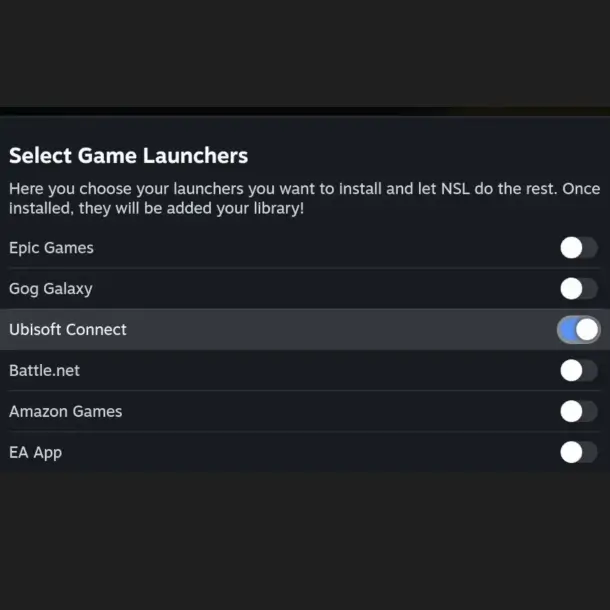
- Scroll down and enable “Separate Launcher Folders,” then click “Install.”
- After installation, press the Steam button.
- Open the Library and locate the Ubisoft Connect app under “Non-Steam Launchers.” Launch the app and sign in to your Ubisoft account. You can now install and play your Ubisoft games!
With these steps, Ubisoft Connect is operational within Gaming Mode, and your Ubisoft Plus games are neatly integrated into your Steam Deck library. Now, you can enjoy your favorite Ubisoft titles on the go!