Don’t let the Blue Screen of Death disrupt your workflow! If you’re encountering error code 0xc00000e during Windows 10 startup, this article is here to help.
How To Fix Error Code 0xc00000e in Windows 10
Understanding the Error
Error code 0xc00000e signals that Windows 10 is having trouble finding a crucial hardware component during boot. This could be your hard drive, SSD, or even a corrupted system file messing with the boot process. Essentially, anything that hinders Windows from locating or launching “winload.exe” (a vital file in the Windows Boot Manager) can trigger this error.
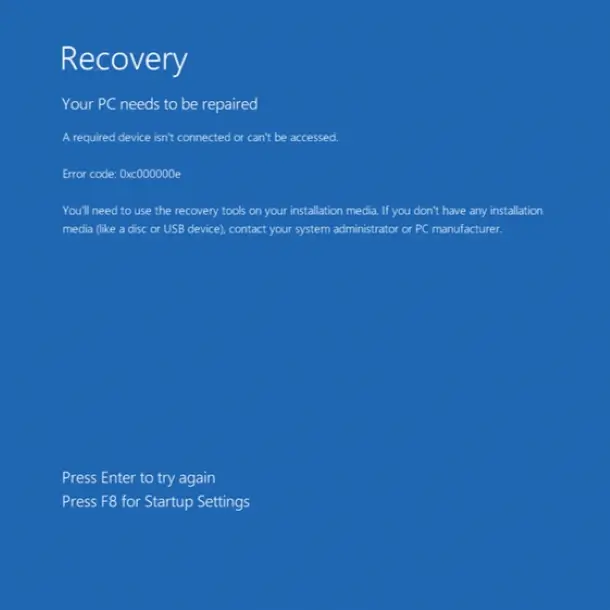
Conquering the Blue Screen
Here’s how you can fight back against the 0xc00000e error:
1. Utilizing the Windows 10 Automatic Repair Tool
Microsoft provides a built-in Automatic Repair Tool designed to address common boot errors. Here’s how to leverage its power:
- Restart your PC. As the manufacturer’s logo appears, press a specific key (often F2) to enter the Boot menu (consult your PC’s manual for the exact key).
- Change the boot option to your Windows 10 USB drive.
- Insert the USB drive and restart your computer. You’ll see a prompt to “Press any key to boot from USB.” Do so.
- Follow the on-screen instructions, selecting your language, time zone, and keyboard preferences.
- Click “Repair your computer” > “Troubleshoot” > “Advanced options” > “Automatic Repair.”
The repair process should take a few minutes. Once complete, check if your PC boots up normally.
2. Rebuilding the Boot Configuration Data (BCD) File
The BCD file instructs Windows on how to start the operating system. Corruption in this file can lead to BSOD errors. Here’s how to rebuild it:
- Boot your computer using the Windows installation media (CD or USB) as in the previous method.
- Select your language, time zone, and input method. Click “Next.”
- Click “Repair your computer” > “Troubleshoot” > “Advanced Options” > “Command Prompt.”
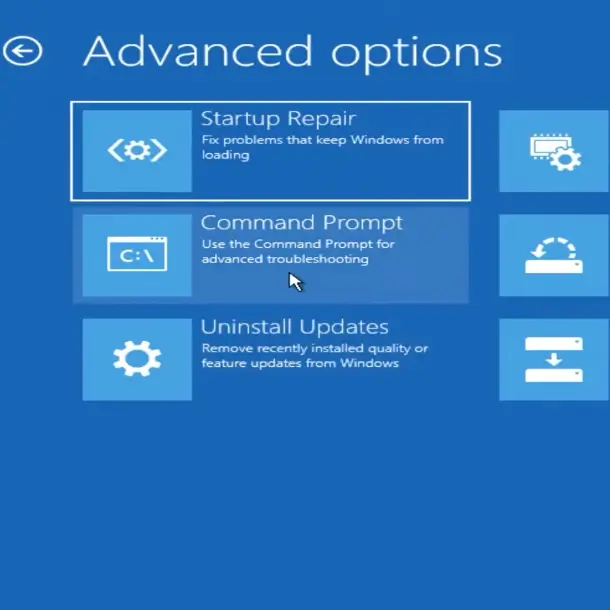
- Type these commands one by one, pressing Enter after each:
- bootrec /scanos
- bootrec /fixmbr
- bootrec /fixboot
- bootrec /rebuildbcd
- Type “exit” and press Enter to close the Command Prompt.
- Restart your computer and see if the error is resolved.
3. Realigning Your BIOS/UEFI Settings
Sometimes, a misconfigured BIOS/UEFI setting can cause the 0xc00000e error. Resetting the BIOS to its default configuration can rectify this issue.
- Restart your computer and watch for the manufacturer’s logo. Immediately press the designated key to enter BIOS setup (often F2, F12, Esc, or Del). Consult your PC’s manual if unsure.
- Navigate the BIOS menu using your arrow keys. Locate the “Load Setup Defaults” option and press Enter to reset BIOS configuration.
- Save and exit BIOS by pressing F10 (key might vary) and allow your computer to reboot.
4. Replacing the CMOS Battery
The CMOS battery, a small chip on your motherboard, stores essential information like BIOS settings, date, and time. It also supplies power to the BIOS firmware even when your PC is unplugged.
A dead CMOS battery can lead to boot issues and the 0xc00000e error. Replacing it is a solution:
- Remove the back panel of your PC and locate the CMOS battery (usually a small, round silver battery).
- Carefully remove the old battery and replace it with a new one of the same type.
- Reinstall the back panel and power on your PC. You’ll likely need to reconfigure some BIOS settings after this process.
5. Restoring Your PC to Factory Settings
If all else fails, consider a factory reset. This will erase everything on your PC and reinstall Windows, essentially restoring it to its original state.
Warning: Back up all your crucial data before proceeding with a factory reset!
Once you’ve backed up your data, follow the steps provided by your PC manufacturer to reset your PC to factory settings.
By following these methods, you should be well-equipped to tackle the 0xc00000e error and get your Windows 10 system running smoothly again. Remember to start with the first two methods and progress to the more complex ones only if necessary.
Related:


![Laptop Screen Not Working But External Monitor Works [Fixed ]](https://www.wmlcloud.com/wp-content/uploads/2026/04/Laptop-Screen-Not-Working-But-External-Monitor-Works-Fixed-.jpeg)

